반응형
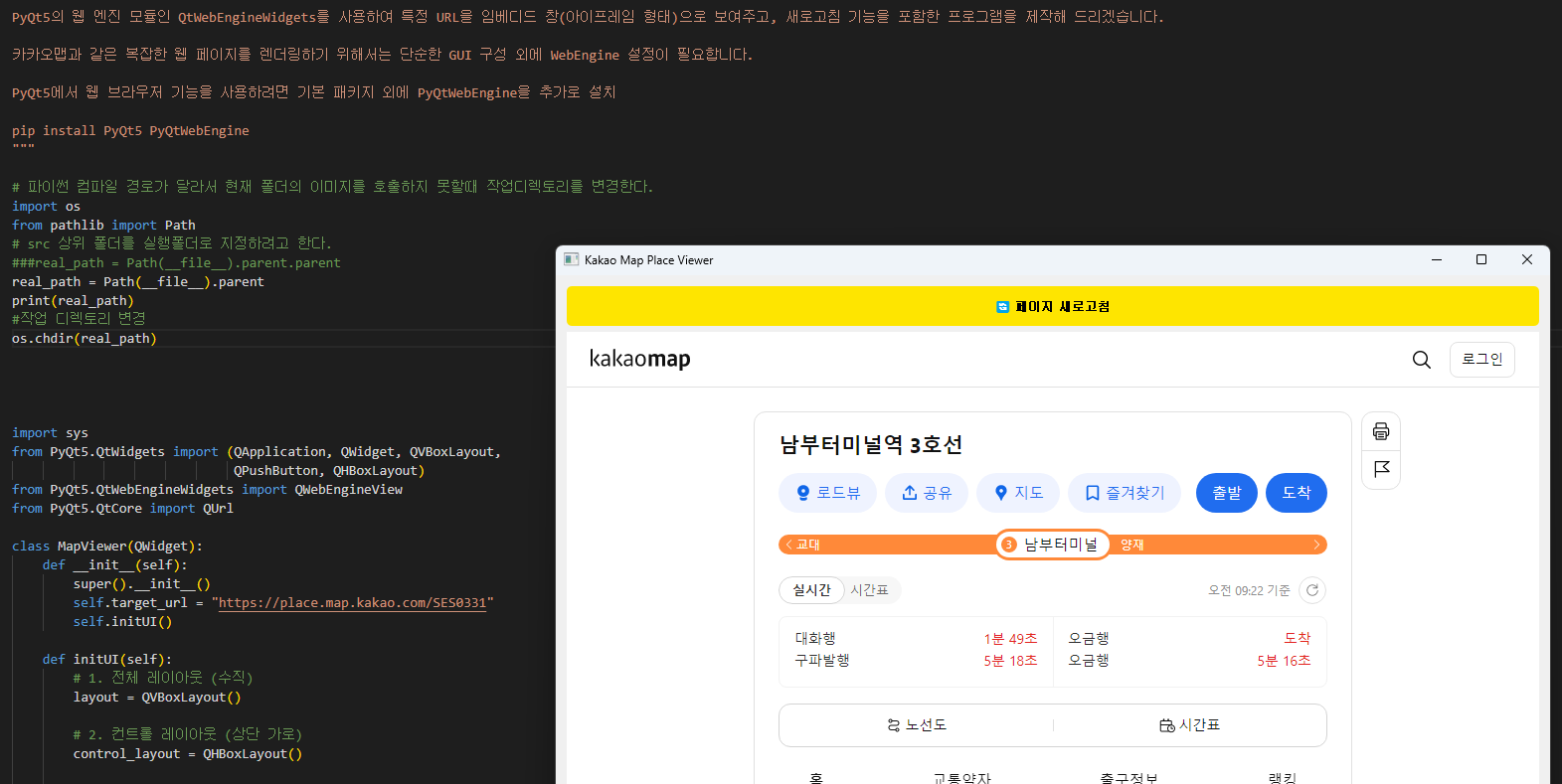
PyQt5의 웹 엔진 모듈인 QtWebEngineWidgets를 사용하여 특정 URL을 임베디드 창(아이프레임 형태)으로 보여주고, 새로고침 기능을 포함한 프로그램을 제작
카카오맵과 같은 복잡한 웹 페이지를 렌더링하기 위해서는 단순한 GUI 구성 외에 WebEngine 설정이 필요
PyQt5에서 웹 브라우저 기능을 사용하려면 기본 패키지 외에 PyQtWebEngine을 추가로 설치
pip install PyQt5 PyQtWebEngine
import sys
from PyQt5.QtWidgets import (QApplication, QWidget, QVBoxLayout,
                             QPushButton, QHBoxLayout)
from PyQt5.QtWebEngineWidgets import QWebEngineView
from PyQt5.QtCore import QUrl

class MapViewer(QWidget):
    def __init__(self):
        super().__init__()
        self.target_url = "https://place.map.kakao.com/SES0331"
        self.initUI()

    def initUI(self):
        # 1. 전체 레이아웃 (수직)
        layout = QVBoxLayout()

        # 2. 컨트롤 레이아웃 (상단 가로)
        control_layout = QHBoxLayout()

        # 새로고침 버튼 생성
        self.btn_refresh = QPushButton('🔄 페이지 새로고침')
        self.btn_refresh.setFixedHeight(40) # 버튼 높이 조절
        self.btn_refresh.setStyleSheet("""
            QPushButton {
                background-color: #fee500; /* 카카오 테마색 */
                border-radius: 5px;
                font-weight: bold;
            }
            QPushButton:hover {
                background-color: #fada00;
            }
        """)
        self.btn_refresh.clicked.connect(self.reload_page)

        control_layout.addWidget(self.btn_refresh)

        # 3. 웹 엔진 뷰 (아이프레임 역할)
        self.web_view = QWebEngineView()
        self.web_view.setUrl(QUrl(self.target_url))

        # 4. 레이아웃에 위젯 추가
        layout.addLayout(control_layout)
        layout.addWidget(self.web_view)

        self.setLayout(layout)
        self.setWindowTitle('Kakao Map Place Viewer')
        self.setGeometry(100, 100, 1000, 800) # 기본 창 크기 설정
        self.show()

    def reload_page(self):
        """페이지를 다시 불러옵니다."""
        self.web_view.reload()

if __name__ == '__main__':
    app = QApplication(sys.argv)

    # 웹 엔진 초기화 (일부 환경에서 필요)
    ex = MapViewer()
    sys.exit(app.exec_())
반응형
'프로그래밍 > Python' 카테고리의 다른 글
| [python] 입력된 웹 페이지 내에서 모든 <img> 요소를 추출하는 프로그램 (0) | 2025.11.25 |
|---|---|
| [python] YouTube 또는 기타 지원되는 웹사이트의 영상 URL에 대해 **사용 가능한 모든 다운로드 형식(Format)**의 목록을 세부 정보와 함께 출력하는 데 사용 (0) | 2025.11.24 |
| [python] 유튜브 영상 경로로 다운받기 youtube_downloader.py (0) | 2025.11.24 |
| [python] random walk artistic noise trail (0) | 2025.11.13 |
| [python] turtle F11 Draw (0) | 2025.11.12 |